Opening an old or poorly maintained QuickBooks Online file can feel overwhelming, especially when you feel like you will need to be fixing historical QuickBooks messes.
The bank accounts may not be reconciled. Undeposited Funds may contain years of customer payments. Accounts Receivable may include invoices that were paid long ago. Loan balances may not match lender statements, and the Profit and Loss report may show income that was accidentally recorded more than once.
Sometimes the problems began with a few simple mistakes. Other times, the business connected QuickBooks to a customer relationship management platform, invoicing system, payment processor, or automation tool without establishing a clear accounting workflow.
Over time, those small problems accumulated into a historical QuickBooks mess.
The good news is that most QuickBooks files can be repaired. The cleanup process may require patience and careful research, but it is often possible to preserve the business’s financial history without starting over.
The key is to clean up the file methodically rather than trying to make incorrect balances disappear with large journal entries or mass deletions.
This article explains what causes historical QuickBooks problems, how to approach a cleanup, why Undeposited Funds frequently becomes part of the issue, and how connected CRM and invoicing systems can create duplicate transactions.
What Is a Historical QuickBooks Cleanup?
A historical QuickBooks cleanup is the process of correcting accounting errors that accumulated over previous months or years.
Unlike routine monthly bookkeeping, a historical cleanup may involve reviewing old transactions, bank statements, payment records, tax returns, loan documents, payroll reports, and information from connected software.
The objective is not simply to make the current bank balance look right.
A proper cleanup should help restore the accuracy of:
- Bank and credit card accounts
- Accounts Receivable
- Accounts Payable
- Undeposited Funds
- Loan and liability balances
- Payroll liabilities
- Fixed assets
- Owner contributions and distributions
- Income and expense accounts
- Prior-period financial reports
The exact scope depends on how long the books have been inaccurate and what information is available.
Some businesses need only a few months corrected. Others may require several years of cleanup before the financial statements can be relied upon.
Signs Your QuickBooks File Needs a Historical Cleanup
Not every unusual balance means the books are completely wrong. However, several warning signs commonly indicate that a deeper review is needed.
Bank accounts have not been reconciled
One of the clearest signs is that the bank and credit card accounts have not been reconciled for several months or years.
The balance shown in QuickBooks may appear close to the bank balance, but that does not necessarily mean the account is accurate. Duplicate transactions, missing checks, deleted payments, and unreconciled entries may offset one another temporarily.
A proper reconciliation verifies that the transactions recorded in QuickBooks agree with the financial institution’s statement for a specific period.
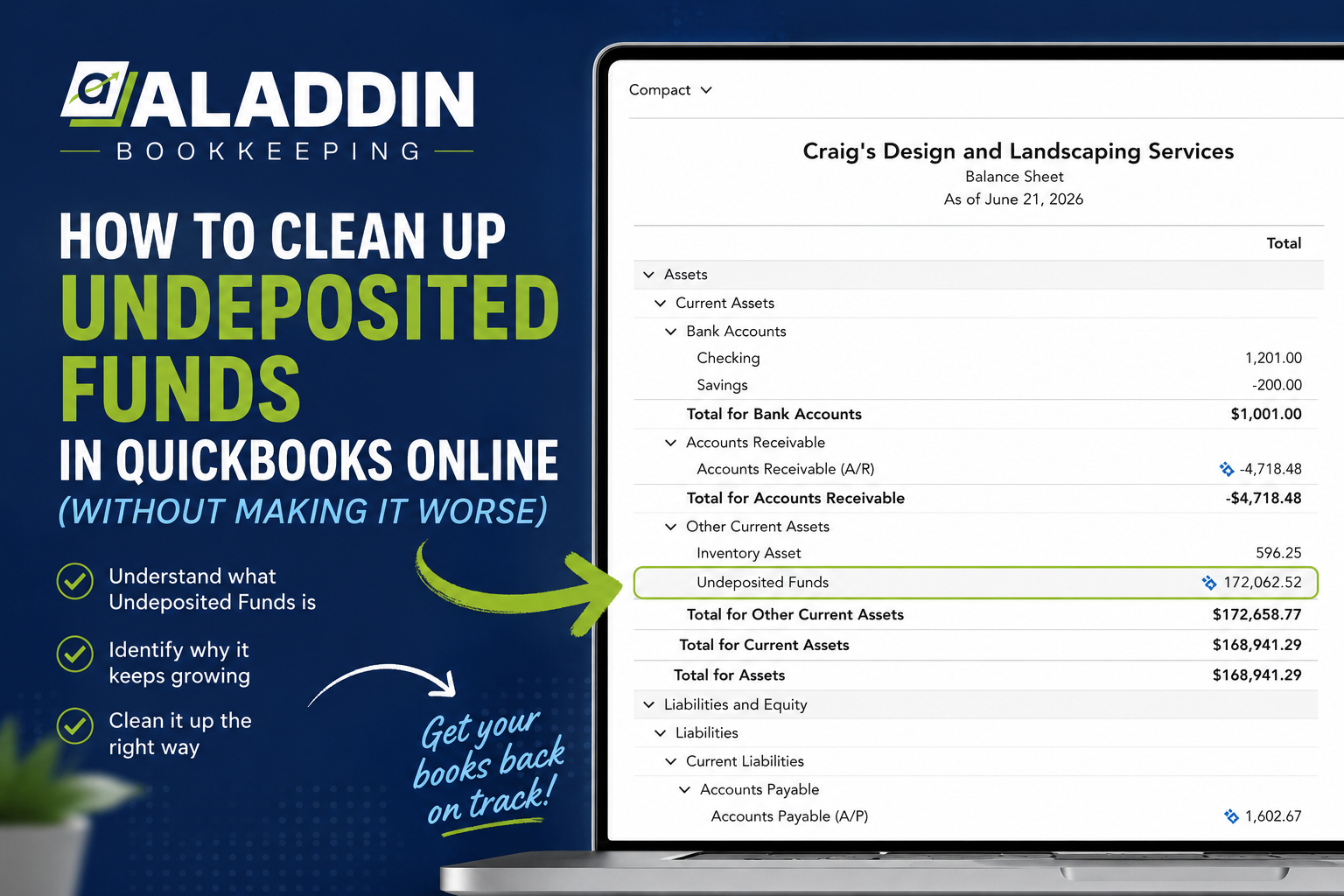
QuickBooks shows a large Undeposited Funds balance
Undeposited Funds should generally represent customer payments that have been received but have not yet been included in a bank deposit.
A small, recent balance may be normal.
A large balance containing transactions from prior years usually signals an incomplete or duplicated payment workflow.
Accounts Receivable contains very old invoices
Old invoices may be valid if customers genuinely have not paid them. However, historical Accounts Receivable often includes invoices that were paid but never properly connected to their payments.

It may also contain duplicate invoices imported from another system or invoices that should have been written off.
Income appears too high
Duplicate income is common in messy QuickBooks files.
For example, an invoice may record the sale once, while a downloaded bank deposit is categorized directly to income a second time. If a connected payment processor or CRM also creates a sales receipt, the same revenue could appear more than twice.
The Balance Sheet contains unexplained balances
Historical errors often appear in accounts such as:
- Opening Balance Equity
- Ask My Accountant
- Uncategorized Asset
- Uncategorized Income
- Uncategorized Expense
- Suspense or clearing accounts
- Negative Accounts Receivable
- Negative Accounts Payable
- Old payroll liabilities
- Incorrect loan balances
These accounts should not automatically be cleared without investigating what created them.
The financial statements do not match tax returns
Book and tax records do not always match exactly, but major unexplained differences may indicate missing entries, duplicated income, incorrect beginning balances, or changes that were made after a prior tax return was filed.
What Causes Historical QuickBooks Messes?
Historical bookkeeping problems rarely come from one single error.
They usually develop because the business’s transaction volume increased while the bookkeeping process remained informal.
Common causes include:
- Bank feed transactions being added instead of matched
- Customer payments recorded more than once
- Deposits posted directly to income
- Personal and business transactions mixed together
- Deleted or altered reconciled transactions
- Incorrect opening balances
- Loan payments recorded entirely as expenses
- Credit card payments categorized as expenses
- Payroll entries duplicated
- Journal entries used to force accounts to balance
- Multiple people working in QuickBooks without a consistent process
- CRM, invoicing, and payment systems sending overlapping data
- Prior cleanups that corrected balances without fixing the underlying transactions
A business may function for years without recognizing these issues because money is still entering and leaving the bank normally.
The problems become visible when the owner needs accurate reports, applies for financing, changes accountants, prepares to sell the business, or discovers that the tax return cannot be completed using the existing books.
Why Undeposited Funds Becomes a Major Historical Problem
Undeposited Funds is one of the most common accounts involved in historical QuickBooks cleanups.
In a normal QuickBooks workflow, the account serves as a temporary holding area.
The process typically looks like this:
- An invoice is created.
- The customer makes a payment.
- The payment is recorded against the invoice and placed in Undeposited Funds.
- One or more payments are grouped into a bank deposit.
- The deposit is matched to the amount appearing on the bank statement.
When this workflow is completed correctly, the customer payment clears Accounts Receivable, moves through Undeposited Funds, and ultimately becomes part of the bank deposit.
Problems begin when one of those steps is skipped or duplicated.
Payments are recorded but never included in a bank deposit
A customer payment may be entered correctly against an invoice, but the bookkeeper later adds the downloaded bank deposit as a separate transaction.
The payment remains in Undeposited Funds even though the money reached the bank.
Bank deposits are categorized directly to income
This is one of the most common causes of duplicate revenue.
The original invoice already recorded the income. The payment then reduced Accounts Receivable. If the bank deposit is added directly to an income account instead of being matched to the recorded payment, QuickBooks records the revenue again.
The result is:
- Income is overstated
- Undeposited Funds remains too high
- The bank account may still appear correct
- Accounts Receivable may or may not be accurate
Duplicate customer payments are created
Payments may be entered manually and also imported from another system.
One payment clears the invoice, while the duplicate remains in Undeposited Funds with nowhere to go.
Deposits are grouped incorrectly
The amount deposited at the bank may represent several customer payments minus processing fees.
If the deposit is recorded without accounting for the fees, it may not match the combined payments in Undeposited Funds.
The bookkeeper may then add the bank deposit separately, leaving the original payments behind.
Historical transactions were changed after reconciliation
If someone deletes or changes a deposit that previously cleared Undeposited Funds, old customer payments can reappear as if they were never deposited.
This is one reason historical cleanup work requires careful review of prior reconciliations.
How CRM and Invoicing Software Can Cause Undeposited Funds to Grow
Connected software is one of the most important areas to investigate during a QuickBooks cleanup.
Many businesses use a CRM or industry-specific system to create estimates, invoices, collect customer payments, and manage jobs.
Examples may include:
- ServiceTitan
- JobTread
- Jobber
- Housecall Pro
- ServiceM8
- Buildertrend
- Field service platforms
- Custom invoicing software
- Stripe
- Square
- Helcim
- PayPal
- Zapier automations
These systems can save significant time, but only when each platform has a clearly defined role.
Multiple systems may create the same invoice
The CRM may send an invoice to QuickBooks automatically.
If someone also creates the invoice manually in QuickBooks, the customer now has two invoices for the same work.
When payment is received, one invoice may be paid while the other remains outstanding.
Both the CRM and payment processor may create payments
A CRM may record that an invoice was paid.
At the same time, the payment processor may send a sales receipt, payment, or deposit into QuickBooks.
That can create duplicate revenue or duplicate payments sitting in Undeposited Funds.
Zapier or another automation may duplicate native integration activity
A business may have a direct integration between its CRM and QuickBooks while also running a Zap that performs a similar function.
The owner may not realize both connections are active.
As a result, each paid invoice may create two or more transactions.
Net deposits may not match gross payments
Payment processors often deposit the customer payment after subtracting merchant fees.
For example:
- Customer payment: $1,000
- Processing fee: $30
- Bank deposit: $970
If QuickBooks contains a $1,000 payment in Undeposited Funds but the bank feed shows $970, the amounts will not match unless the deposit is recorded with the $30 processing fee.
When the difference is not understood, someone may add the $970 deposit separately. The $1,000 payment remains in Undeposited Funds, and income may be duplicated.
Integration settings may change over time
An integration may initially send invoices only, then later begin sending invoices and payments.
Another user may change the mapping or enable a deposit-sync feature.
Historical cleanup therefore requires determining not only which systems are currently connected, but also how they operated during the period being reviewed.
The Right Way to Approach a Historical QuickBooks Cleanup
A cleanup should follow a logical order. Correcting accounts randomly can create new problems or undo work that has already been completed.
Step 1: Define the cleanup period
Determine when the books were last reliable.
That may be:
- The last completed bank reconciliation
- The date of the last professionally prepared tax return
- The beginning of the current year
- The date a new software integration was activated
- The date bookkeeping responsibilities changed hands
A clear starting point helps prevent unnecessary changes to older periods.
Step 2: Gather supporting documentation
The cleanup may require:
- Bank statements
- Credit card statements
- Loan statements
- Merchant processor reports
- Payroll reports
- Prior tax returns
- Accounts Receivable reports
- Accounts Payable reports
- CRM payment reports
- Invoicing system exports
- Fixed-asset schedules
- Closing entries from the CPA
QuickBooks alone may not contain enough information to determine what actually happened.
Step 3: Protect prior-year information
Before changing historical transactions, consider whether the period has already been used to file a tax return.
Corrections may still be necessary, but they should be handled carefully.
The bookkeeper and tax professional may need to coordinate when a cleanup affects previously filed years.
A backup or export of key reports should also be retained before significant changes are made.
Step 4: Review the Balance Sheet first
The Balance Sheet often reveals the largest structural problems.
Review:
- Bank accounts
- Accounts Receivable
- Undeposited Funds
- Inventory
- Fixed assets
- Accounts Payable
- Credit cards
- Loans
- Payroll liabilities
- Sales tax liabilities
- Owner equity
Profit and Loss problems are important, but many income statement errors originate from incorrect Balance Sheet transactions.
Step 5: Reconcile cash accounts
Bank and credit card accounts should be reconciled using actual statements.
Do not assume the current bank balance proves the historical transactions are correct.
Reconciliations may reveal:
- Duplicate deposits
- Missing checks
- Deleted transactions
- Incorrect dates
- Credit card payments recorded as expenses
- Transfers categorized as income
- Old outstanding checks
- Opening balance adjustments
Step 6: Investigate Undeposited Funds transaction by transaction
Run a detailed report for Undeposited Funds and organize the transactions by date, customer, and amount.
For each payment, determine:
- Did the customer actually pay?
- Did the money reach the bank?
- Was the related invoice legitimate?
- Is there a corresponding deposit?
- Was the bank transaction added separately?
- Did a CRM or payment platform create a duplicate?
- Was a processing fee deducted?
- Does the payment belong to another entity or account?
Avoid clearing the balance with one journal entry unless there is strong supporting documentation and a valid accounting reason.
Step 7: Review Accounts Receivable and Accounts Payable
Old receivables and payables should be verified, not simply deleted.
For Accounts Receivable, determine whether each old invoice is:
- Still collectible
- Already paid
- Duplicated
- Entered under the wrong customer
- Connected to an incorrect payment
- Eligible to be written off
For Accounts Payable, determine whether each bill is:
- Still owed
- Already paid
- Duplicated
- Entered to the wrong vendor
- Paid outside QuickBooks
- Recorded in the wrong accounting period
Step 8: Correct duplicate income and expenses
Duplicate transactions often result from bank feeds, integrations, and manual entry overlapping.
Common examples include:
- Invoice plus bank deposit categorized to income
- Sales receipt plus invoice
- Bill plus bank-feed expense
- Payroll expense plus imported payroll journal entry
- Credit card charge plus bill
- Transfer plus income transaction
- CRM payment plus payment processor deposit
The goal is to retain the transaction that best reflects the actual accounting event and remove or correct the duplicate without breaking related records.
Step 9: Verify liability and equity balances
Loan balances should match lender statements after accounting for principal and interest.
Payroll and sales tax liabilities should agree with filed reports or provider records.
Owner contributions, distributions, and personal expenses should be reviewed to ensure they were not incorrectly recorded as business income or operating expenses.
Step 10: Review the corrected financial reports
Once the major accounts are cleaned up, review:
- Profit and Loss by month
- Comparative Profit and Loss
- Balance Sheet
- Accounts Receivable Aging
- Accounts Payable Aging
- General Ledger
- Statement of Cash Flows
- Transaction detail for unusual accounts
Look for large fluctuations, negative balances, round-number adjustments, and transactions posted to unexpected accounts.
Why Large Journal Entries Can Make the Problem Worse
Journal entries are useful accounting tools, but they are often misused during QuickBooks cleanups.
A journal entry may make an account balance look correct without resolving the customer, vendor, invoice, payment, or reconciliation detail underneath it.
For example, a journal entry can reduce Undeposited Funds, but it may leave paid invoices, duplicate payments, and overstated income unresolved.
Large cleanup journal entries can also:
- Distort prior-period reports
- Create negative Accounts Receivable
- Break customer balances
- Hide duplicate transactions
- Make future reconciliations more difficult
- Create questions during tax preparation
- Leave the same faulty workflow in place
In some historical situations, a journal entry is appropriate. However, it should be supported by research and used intentionally—not simply because the account needs to be zero.
Should You Start a New QuickBooks File Instead?
Starting over can be tempting, especially when the existing file contains years of errors.
However, a new file is not always the best answer.
Starting a new file may cause the business to lose:
- Customer transaction history
- Vendor history
- Detailed job records
- Prior invoice information
- Comparative financial reporting
- Audit trail continuity
- Historical class or location data
A new file may be appropriate when the existing setup is structurally unusable, the legal entity changed, or the historical detail has little value.
In many cases, cleaning up the existing file provides a better long-term result.
The decision should be based on the condition of the file, the availability of records, and the business’s reporting needs.
How to Prevent Another Historical Mess
The cleanup is only half of the solution.
The business also needs a workflow that prevents the errors from returning.
Assign one source for each transaction type
Decide which system is responsible for creating:
- Estimates
- Invoices
- Customer payments
- Sales receipts
- Refunds
- Deposits
- Processing fees
Avoid allowing multiple systems to create the same accounting event.
Document the CRM-to-QuickBooks workflow
Create a simple written process explaining what happens when:
- A customer is invoiced.
- A payment is collected.
- The processor deducts its fee.
- The deposit reaches the bank.
- The bank transaction appears in QuickBooks.
This is especially important when staff members work in both the CRM and QuickBooks.
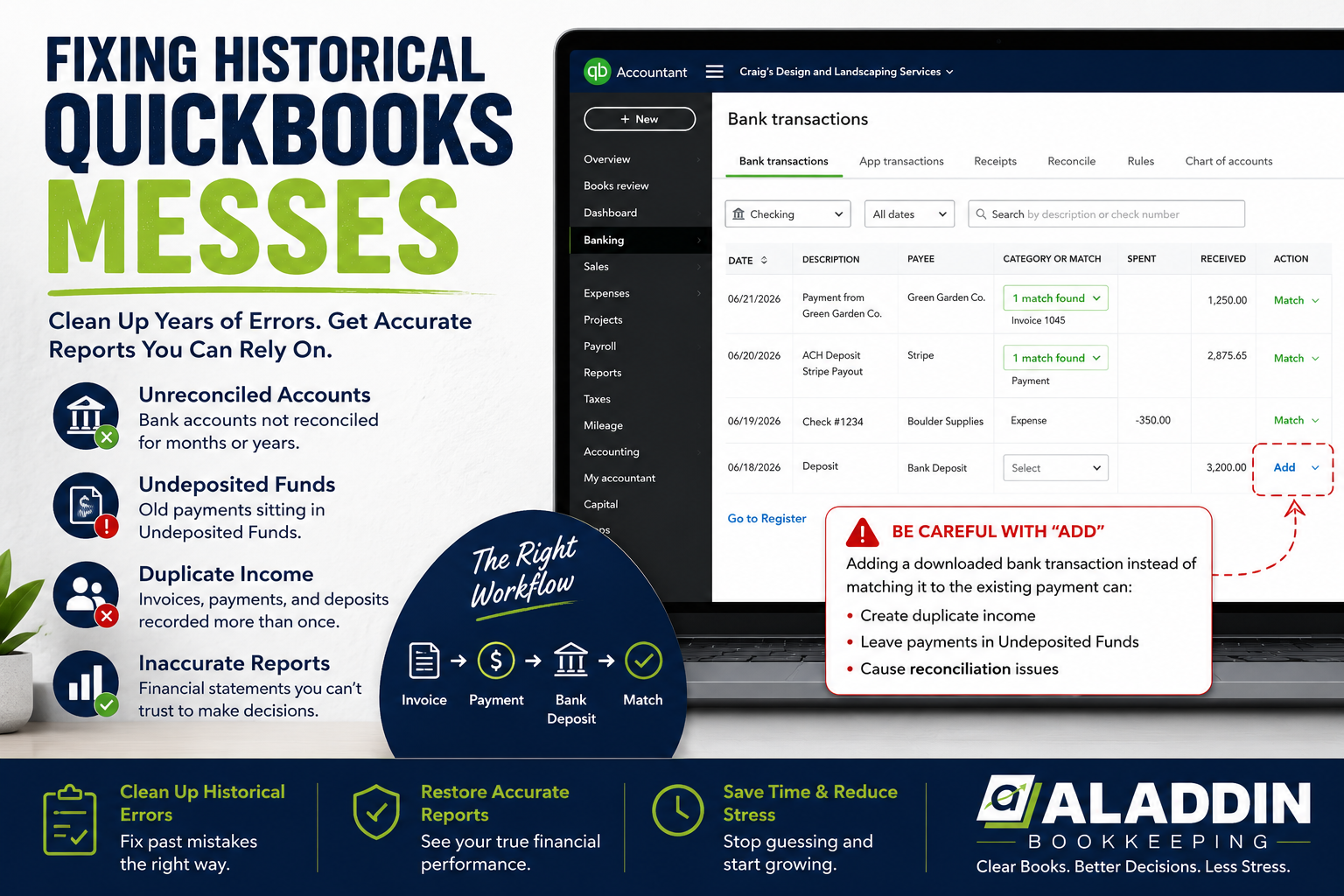
Match bank-feed transactions whenever appropriate
Before clicking Add, search for an existing transaction.
If the invoice, payment, bill, expense, or transfer already exists, the downloaded bank transaction should generally be matched to it rather than added as new activity.
Reconcile every month
Monthly reconciliations prevent small issues from becoming multi-year cleanup projects.
Review key Balance Sheet accounts
A monthly review should include:
- Undeposited Funds
- Accounts Receivable
- Accounts Payable
- Loan balances
- Credit cards
- Payroll liabilities
- Sales tax liabilities
- Clearing accounts
Restrict unnecessary QuickBooks access
Too many users making changes without a shared process can quickly damage the books.
Access should match each person’s role, and major changes should be documented.
Frequently Asked Questions About Historical QuickBooks Cleanup
Can years of bad bookkeeping be fixed?
In many cases, yes. The success of the cleanup depends on the quality of available records, how many years are involved, and whether transactions can be verified using bank statements and supporting reports.
How long does a historical QuickBooks cleanup take?
The timeline varies widely. A few months of straightforward reconciliation errors may take relatively little time, while several years of duplicated transactions and integration problems may require a much larger project.
Should Undeposited Funds be zero?
Not always. A current balance may be legitimate when customer payments have been received but not yet deposited. Old or unusually large balances should be investigated.
Why does Undeposited Funds keep growing after it has been cleaned up?
The original workflow may still be incorrect. Common causes include adding bank deposits instead of matching them, duplicate payments from connected systems, and net processor deposits not being matched to gross customer payments.
Can a CRM create duplicate income in QuickBooks?
Yes. Duplicate income may occur when the CRM creates an invoice or payment and another integration, payment processor, automation, or bank-feed entry records the same activity again.
Can I delete all old transactions in Undeposited Funds?
That is not recommended. Some transactions may be legitimate customer payments that need to be connected to the correct deposit. Deleting them can reopen invoices or alter prior financial reports.
Can I use one journal entry to fix the entire cleanup?
A journal entry may be appropriate for certain summarized historical corrections, but it usually cannot resolve every underlying issue. It may also leave customer, vendor, and reconciliation detail inaccurate.
Will cleaning up prior years change my tax returns?
It can. If the cleanup changes previously reported income, expenses, assets, liabilities, or equity, the tax professional should review the impact.
Do I need every old receipt to clean up QuickBooks?
Not necessarily, but the more documentation available, the more reliable the cleanup can be. Bank statements, processor reports, tax returns, loan statements, and CRM records may be more important than individual receipts for some issues.
Is it better to clean up QuickBooks or start over?
It depends on the condition of the file and the value of its historical records. Many files can be repaired, but some businesses may benefit from establishing a new file with verified beginning balances.
Final Thoughts
A historical QuickBooks mess does not develop overnight, and it usually cannot be corrected by changing one account balance.
The most reliable cleanup process begins with understanding how the business actually receives, spends, and records money.
Bank feeds, customer payments, merchant deposits, CRM integrations, and invoicing platforms must all work together. When multiple systems create overlapping transactions, accounts such as Undeposited Funds, Accounts Receivable, and income can become inaccurate even though the bank account appears normal.
The goal of a cleanup is not just to produce a cleaner Balance Sheet today.
It is to identify the cause of the errors, correct the historical records as accurately as possible, and establish a bookkeeping workflow that prevents the same problem from returning.
Need Help Fixing a Historical QuickBooks Mess?
If your QuickBooks Online file contains unreconciled accounts, duplicate income, old customer balances, unexplained adjustments, or years of transactions sitting in Undeposited Funds, the solution should begin with a careful review—not a large journal entry that simply hides the problem.
At Aladdin Bookkeeping, we help businesses identify what caused their QuickBooks issues, correct historical transactions, and establish a cleaner bookkeeping process going forward.
We also review problems involving connected CRMs, invoicing platforms, payment processors, and bank feeds to determine whether multiple systems are recording the same activity.
Contact Aladdin Bookkeeping to discuss your QuickBooks cleanup and get financial reports you can rely on again.