
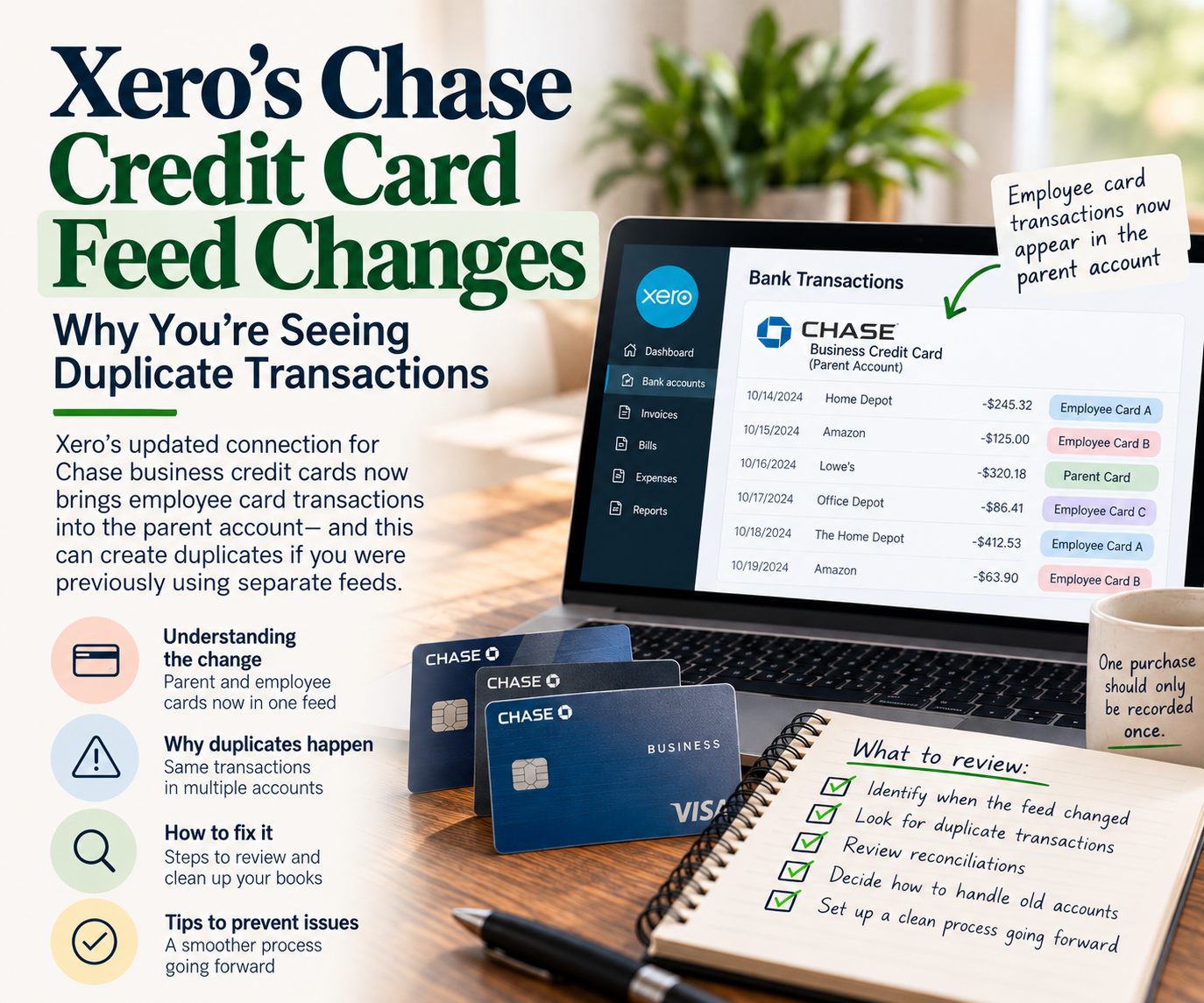
If you use Xero with Chase business credit cards, you may have noticed something unexpected: transactions from employee credit cards are now appearing under the primary credit card account. Xero Chase credit card duplicate transactions are now an issue showing up following an update to the software used by Xero to connect with the banks.
For businesses that previously maintained separate accounts in Xero for each cardholder, this can create a serious bookkeeping headache.
You may suddenly see transactions in the parent credit card account that you previously expected to appear only under an employee’s card.
Worse, some of those transactions may already exist in the employee credit card accounts, creating Xero Chase credit card duplicate transactions.
Now you’re left wondering:
- Why are employee purchases showing up under the main card?
- Are the transactions actually duplicated?
- Should the employee credit card accounts be disconnected?
- How do you reconcile the old balances?
- What happens to transactions that were already reconciled?
- How do you avoid recording expenses twice?
The issue is particularly frustrating because your bookkeeping process may have worked perfectly well before the connection changed.
The good news is that the change doesn’t necessarily mean your accounting records are permanently damaged.
However, you need to understand how the new bank feed works before deleting, reconciling, or moving transactions.
What Changed With Chase Business Credit Cards in Xero?
Previously, some businesses connected their Chase business credit cards to Xero using separate bank accounts for the primary card and each employee card.
For example, a company might have had:
- Chase Primary Card – 1234
- Chase Employee Card – 5678
- Chase Employee Card – 9012
Each card had its own Xero bank-feed account, making it easier to identify which employee made each purchase.
With Xero’s consolidated Plaid credit card feed approach, transactions from the parent card and authorized employee cards can now be imported into one Xero bank account.
According to Xero’s bank feed documentation, parent and subcards correspond to one bank account under this connection method, rather than separate feeds for every card.
What Does That Mean in Practice?
Suppose your business has three Chase cards:
| Card | Monthly Purchases |
|---|---|
| Primary card | $3,500 |
| Employee card A | $2,200 |
| Employee card B | $1,800 |
| Total | $7,500 |
Previously, those transactions may have appeared across three separate Xero accounts.
Under the consolidated approach, the parent account may now import all $7,500 of purchases.
For a business starting fresh, that can simplify accounting.
But for a business that already has separate card accounts and years of historical transactions, the transition can create problems.
Why Are Employee Credit Card Transactions Appearing in the Parent Account?
Although Chase may provide individual cards to employees, those cards can belong to the same underlying business credit card account.
With Xero’s consolidated Plaid connection, authorized subcard activity can be included in the parent account feed.
This is not necessarily an accounting error.

In fact, if Chase issues one combined statement showing purchases from all cardholders and one overall amount due, a consolidated Xero account may ultimately be easier to reconcile.
The problem is what happens when the transition isn’t handled carefully.
A company that previously reconciled every employee card separately may suddenly have two different accounting workflows overlapping.
And that is where duplicate transactions become a serious concern.
The Biggest Problem: Duplicate Credit Card Transactions
Imagine an employee purchased $1,250 of materials using their Chase business credit card.
Before the feed change, Xero imported that purchase into:
Chase Employee Card – 5678
The bookkeeper categorized the transaction as Materials Expense and reconciled it.
Everything was correct.
After the connection changed, the parent credit card feed imported the same $1,250 purchase into:
Chase Primary Card – 1234
Now the same real-world purchase appears in two Xero bank accounts.
If the bookkeeper doesn’t recognize the duplication and reconciles the new transaction as another materials expense, the business may record $2,500 of expenses for a purchase that actually cost $1,250.
One purchase. Two recorded expenses.
The same problem can happen across dozens or hundreds of transactions.
For a business with several employees making daily purchases, this can quickly turn into a significant bookkeeping cleanup.
How Duplicate Credit Card Transactions Affect Your Financial Reports
Duplicate credit card expenses can cause:
- Overstated operating expenses or cost of goods sold
- Understated net income
- Incorrect credit card liability balances
- Distorted financial statements
- Duplicate job costs
- Problems reconciling to Chase statements
The duplicate may not be obvious if one transaction was imported months ago and the other appeared during the new feed connection.
This is why you shouldn’t assume every transaction appearing in the bank feed needs to be recorded as a new expense.
Why Your Xero Credit Card Reconciliations May No Longer Match
Bank reconciliation is where many businesses first discover this problem.
Before the transition, you may have reconciled each employee credit card account separately.
After the transition, purchases are being imported into the parent account.
That creates a disconnect between where transactions were historically recorded and where they’re now arriving.
Consider this example.
Your employee card account in Xero has a $4,000 outstanding balance.
The parent credit card account has a $6,000 balance.
Together, the accounts reflect $10,000 owed to Chase.
Then the consolidated parent feed begins importing employee card transactions.
If those transactions already exist in the employee account, the parent account may show additional activity that shouldn’t be recorded a second time.
Your Xero balances may no longer agree with the total owed on the Chase statement, creating Xero Chase credit card duplicate transactions.
And simply reconciling everything appearing in the new feed won’t fix the problem.
A bank-feed transaction appearing in Xero doesn’t automatically mean you need to create another accounting transaction.
Sometimes it represents activity that is already in your books.
What Happens to Transactions That Were Already Reconciled?
This is one of the most important questions.
If employee card transactions were already correctly recorded and reconciled under their original Xero accounts, the feed change doesn’t automatically mean those historical accounting entries were wrong.
The original purchases may still be perfectly valid.
The problem is that the new feed may contain another copy of those same purchases.
You should not automatically delete the original reconciled transactions just because they now appear in the parent account.
Doing so could change historical financial statements, remove job costs, and disrupt previously completed reconciliations.
Instead, determine which entries represent the original, valid accounting activity and which are duplicate imported statement lines.
That distinction matters because removing an unneeded bank statement line is different from deleting an actual accounting transaction.
If the duplicate has already been reconciled, it may need to be unreconciled and reviewed before any correction.
Avoid bulk changes until the historical and new transactions have been compared.
How to Fix Xero Chase Credit Card Duplicate Transactions
The best approach is to identify the transition date, compare the old and new feeds, and preserve transactions that were already recorded correctly.
Step 1: Identify When the Feed Changed
Start by determining when employee card transactions first began appearing in the parent credit card account.
Review the transaction history in Xero and compare it with your Chase statements.
Pay attention to the first date when the parent feed began importing transactions from other cardholders.
This will help establish which transactions may have been imported twice.
Step 2: Review Every Chase Credit Card Account in Xero
Open your Xero bank accounts and identify all Chase business credit card accounts.
Determine which are connected to active feeds and which contain historical transactions.
For each account, review:
- The statement balance
- The balance in Xero
- The most recent reconciled date
- Whether transactions continue to import
Don’t assume an employee card account is safe to remove simply because the parent account now contains its transactions.
Step 3: Compare the Duplicate Transactions
Look for purchases with matching:
- Transaction dates or nearby posting dates
- Amounts
- Merchant names
- Cardholders
- Receipt information
A duplicate might have slightly different descriptions between the old and new feeds.
For example, one feed may identify a purchase as “HOME DEPOT 1234” while the other simply says “HOME DEPOT.”
That’s why matching descriptions alone isn’t enough.
Xero provides reconciliation and bank statement reporting tools that can help identify discrepancies and duplicate statement lines.
However, because this situation involves transactions imported into different Xero bank accounts, you should also compare the accounts directly.
Step 4: Determine Which Transactions to Preserve
This is the most important part of the cleanup.
If a transaction was already correctly recorded in the employee credit card account, you generally don’t want to create another expense when it appears in the parent feed.
However, whether to remove the newly imported duplicate statement line or restructure the historical accounts depends on how you’re transitioning to the consolidated account.
For a straightforward transition, preserving the historical entries and removing confirmed duplicate feed lines may be appropriate.
For a more complex transition, the account balances and cutover entries need to be reviewed together.
Do not delete transactions simply because the amounts match.
Confirm that they represent the same purchase.
Step 5: Review Whether the Employee Feeds Should Remain Connected
If the consolidated parent feed is now reliably importing all authorized employee card purchases, continuing to import the same activity into separate employee accounts can create ongoing duplicates.
Businesses may need to disconnect the older employee feeds after confirming the consolidated connection is complete.
Disconnecting a feed doesn’t automatically resolve existing accounting balances, though.
Those balances still need to be addressed separately.
Step 6: Reconcile the Combined Credit Card Liability
After reviewing the duplicate activity, compare your Xero credit card balances with the Chase statement.
If Chase issues one combined statement, determine whether the parent account in Xero is intended to represent the entire liability going forward.
Then review any remaining balances in the historical employee accounts.
Depending on how the accounts were previously structured, properly documented balance transfers or other supported accounting corrections may be necessary.
Don’t create a journal entry simply to make the numbers agree without understanding where the difference originated.
Should You Delete the Old Employee Credit Card Accounts?
Not necessarily.
If those accounts contain historical transactions, deleting them isn’t generally an appropriate first step.
The accounts may contain years of properly recorded purchases, payments, and reconciliation history.
Before archiving an employee card account, make sure:
- Its historical activity is complete.
- Its ending balance is supported.
- Any balance carried into the consolidated account has been accounted for correctly.
- The new parent account is importing the expected transactions.
- Historical reconciliation records have been preserved.
A clean transition should preserve your accounting history while establishing a reliable workflow going forward.
What About Credit Card Payments?
Credit card payments can create another layer of confusion.
Suppose Chase shows one payment of $10,000 covering purchases from the primary and employee cards.
Previously, your bookkeeping process may have allocated that payment among several credit card accounts.
Now the consolidated feed may show the payment against the parent account.
If you continue using the old allocation method without adjusting the workflow, you may create duplicate transfers or leave unexplained balances in the employee accounts.
Remember that paying a business credit card is generally a reduction of the credit card liability, not another expense for the underlying purchases.
The goal is to record the purchases once and the payment once, while ensuring the liability balances agree with the statement.
Why This Change Can Affect Construction Job Costing
For construction businesses, duplicate credit card transactions can cause problems beyond the Balance Sheet.
Consider a contractor whose employee purchases $3,000 of materials for a specific construction project.
The original purchase was correctly recorded and assigned to the project.
After the bank-feed change, that same purchase is imported into the parent credit card account.
If someone records the duplicate and assigns it to the same job, the project’s material costs may now be overstated by $3,000.
That can make a profitable project appear less profitable.
If the duplicate is assigned to a different project, both projects’ cost reports may become misleading.
This is particularly important for contractors who rely on job-costing reports to evaluate margins and price future work.
Accurate project reporting depends on accurate underlying transactions.
How to Prevent Duplicate Transactions Going Forward
Once the transition is complete, establish a clear process for managing Chase credit card activity in Xero.
Ideally, the accounting workflow should identify one primary account that receives the authorized card activity, with a consistent way to identify each employee’s purchases.
Businesses may also need to revise how they collect receipts, assign project costs, and review employee spending.
For example, if you previously collected receipts by matching them against each employee’s individual Xero account, you’ll need another method of identifying cardholders when transactions are combined.
A receipt-management application, employee purchase documentation, or consistent tracking information may help.
The important thing is to avoid relying on a process that assumes every employee still has a separate active feed.
Frequently Asked Questions About Xero and Chase Credit Cards
Why Are My Chase Employee Credit Card Transactions Showing Up in the Parent Account in Xero?
Xero’s Plaid credit card connection can consolidate parent and authorized employee card transactions into one Xero bank account. As a result, employee purchases may appear in the parent account rather than separate feeds.
Did Chase or Xero Make This Change?
The documented change concerns how Xero’s Plaid-connected credit card feeds handle parent and authorized subcards. This doesn’t necessarily mean Chase changed how its credit card statements work.
Why Am I Seeing Duplicate Chase Credit Card Transactions?
Duplicates can occur when transactions already imported into employee card accounts also appear through the consolidated parent feed.
Should I Delete All the Duplicate Transactions?
No. First confirm which entries are duplicates and distinguish imported bank statement lines from accounting transactions. Deleting valid accounting entries can affect expenses, liabilities, and historical reconciliations.
Should I Disconnect the Employee Credit Card Feeds?
If the consolidated parent feed is correctly importing all authorized employee card transactions, separate employee feeds may no longer be appropriate. Confirm the transaction coverage and transition date before disconnecting anything.
Can I Keep Separate Xero Bank Feeds for Every Employee Card?
Xero’s Plaid connection documentation describes parent and authorized subcards as corresponding to one Xero bank account. If you need a different setup, check with Xero support for available connection options.
Will Disconnecting the Employee Cards Delete Their Historical Transactions?
Disconnecting a bank feed is different from deleting historical accounting records. You still need to review the accounts and any remaining balances before archiving them.
Why Doesn’t My Xero Credit Card Balance Match Chase?
Potential causes include duplicate transactions, missing transactions, incorrect transfers, old balances in employee accounts, or entries reconciled incorrectly.
Compare Xero’s statement balance and accounting balance with the actual Chase statement to identify where the difference begins.
Can I Simply Transfer All Employee Card Balances Into the Parent Account?
A properly supported balance transfer may be part of the transition, but the correct treatment depends on how the accounts were previously recorded. Don’t transfer arbitrary amounts merely to force a reconciliation.
Does Xero Automatically Detect Duplicate Credit Card Transactions?
Xero has tools to identify potential duplicate statement lines, but those tools don’t replace reviewing transactions across separate parent and employee accounts.
Is There a Way to Go Back to the Old Separate-Card Setup?
Xero’s current Plaid guidance does not provide separate parent and subcard feeds under that connection method. Contact Xero support to determine whether another supported connection or import workflow is available for your Chase account.
How Do I Know Whether the Transition Was Completed Correctly?
Your combined Xero credit card balances should agree with the applicable Chase statements, historical employee card balances should be accounted for, purchases should be recorded only once, and new transactions should no longer be duplicated across active feeds.
Final Thoughts: The Feed Change Isn’t Necessarily the Problem—The Transition Is
Having all Chase business credit card transactions imported into one Xero account isn’t necessarily a bad thing.
For businesses with a single combined credit card statement, it may ultimately simplify reconciliation and reduce the need for complicated transfers between employee cards.
But when a business has spent years maintaining separate card accounts, switching to a consolidated feed without a proper transition can create significant accounting problems.
The biggest risks are duplicate expenses, inaccurate credit card balances, broken reconciliations, and confusion over which transactions belong in which account.
The solution isn’t to start deleting everything that looks duplicated.
It’s to understand the old workflow, establish where the new workflow begins, and make sure each transaction is recorded exactly once.
The objective is straightforward: one actual purchase, one accounting record, and credit card balances that agree with Chase.
Are Your Chase Credit Card Transactions Duplicating in Xero?
If Xero has started importing employee credit card transactions into your parent Chase account, you may be dealing with duplicate expenses, unreconciled transactions, and credit card balances that no longer make sense. Xero Chase credit card duplicate transactions can cause issues, such as double expenses or transfers with no match.
At Aladdin Bookkeeping, we help businesses investigate bookkeeping discrepancies, clean up duplicate transactions, reconcile credit card accounts, and establish more reliable accounting workflows.
Whether the problem started with a bank-feed change, connected software, or historical bookkeeping errors, our focus is on identifying what actually happened and correcting the underlying issue.
Contact Aladdin Bookkeeping to discuss your Xero bookkeeping cleanup needs.